The guide, part two
Make your own.
Every pattern on your board was made by someone. This is where they come from: the community, where people share them, and Pattern Lab, where you make your own.
Scroll
The guide, part two
Every pattern on your board was made by someone. This is where they come from: the community, where people share them, and Pattern Lab, where you make your own.
Scroll
Patterns other people made, playing live. Take one at a time, or a whole deck.
The wall
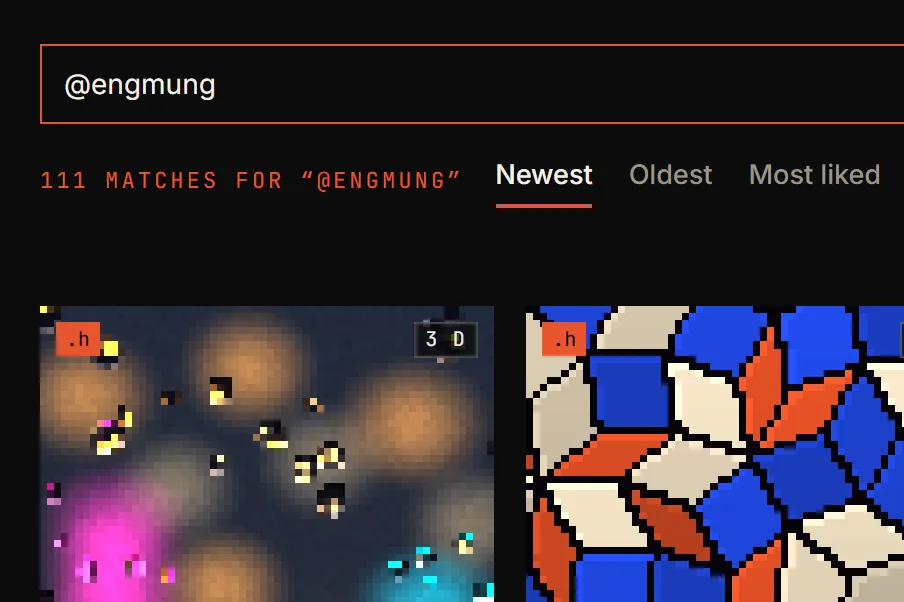
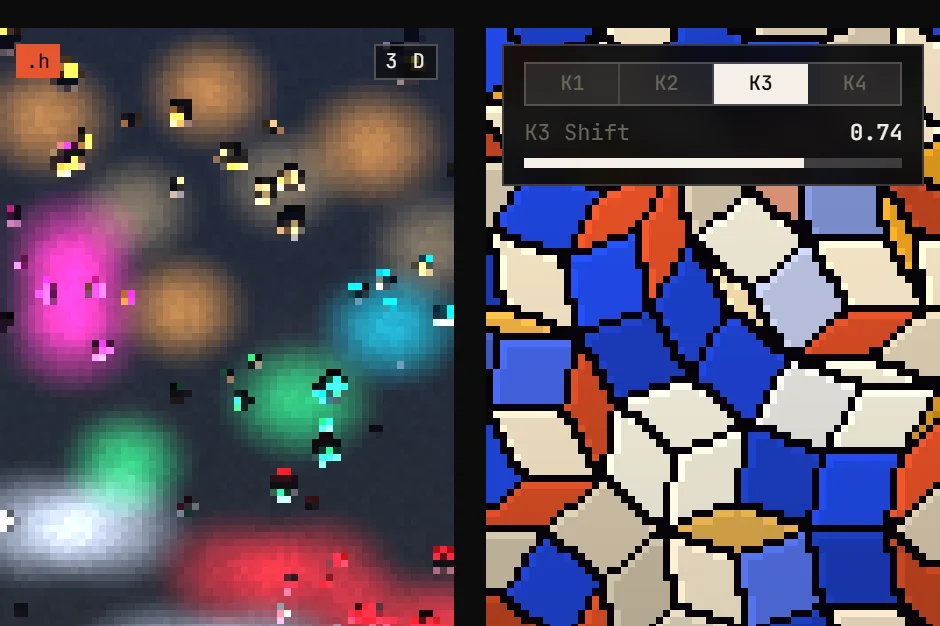
community.patternflow.work is a wall of everything people have shared. Hover a card and it plays; roll the wheel over its screen and its knobs turn. Looking needs no account.
On a phone the cards are stills. Tap one to open its page, where it plays.
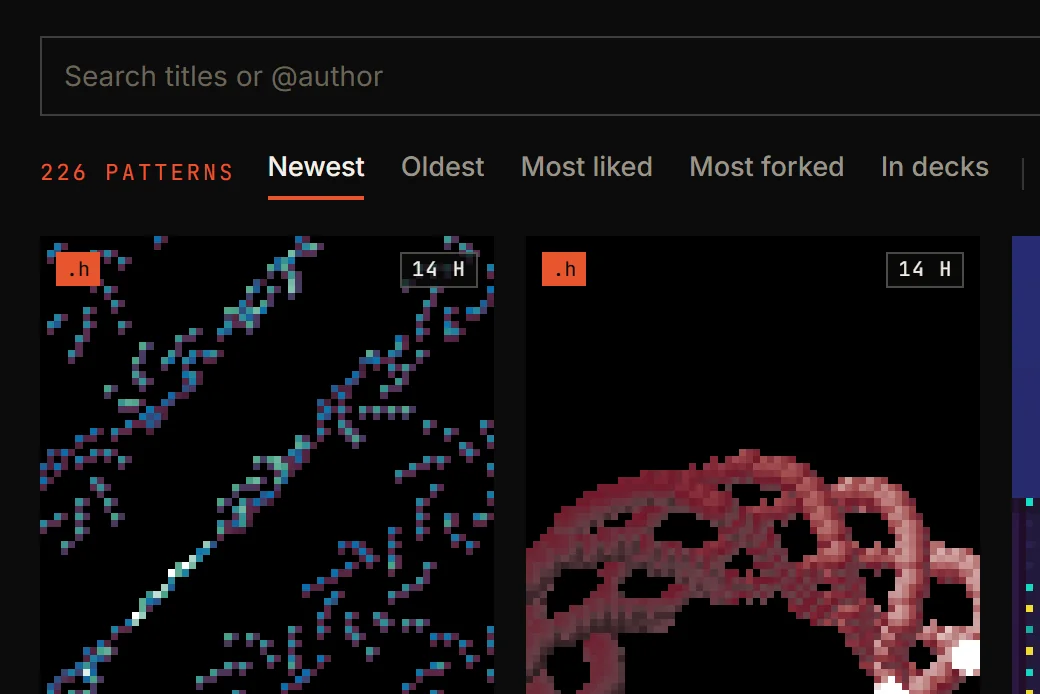
Newest · Oldest · Most liked · Most forked · In decksThe orders the wall comes in. Oldest goes back to the very first patterns.
.h
Every pattern here is JavaScript — that's what plays in your browser. The board runs C++, so a pattern can go on it only once it has a .h, its firmware header.
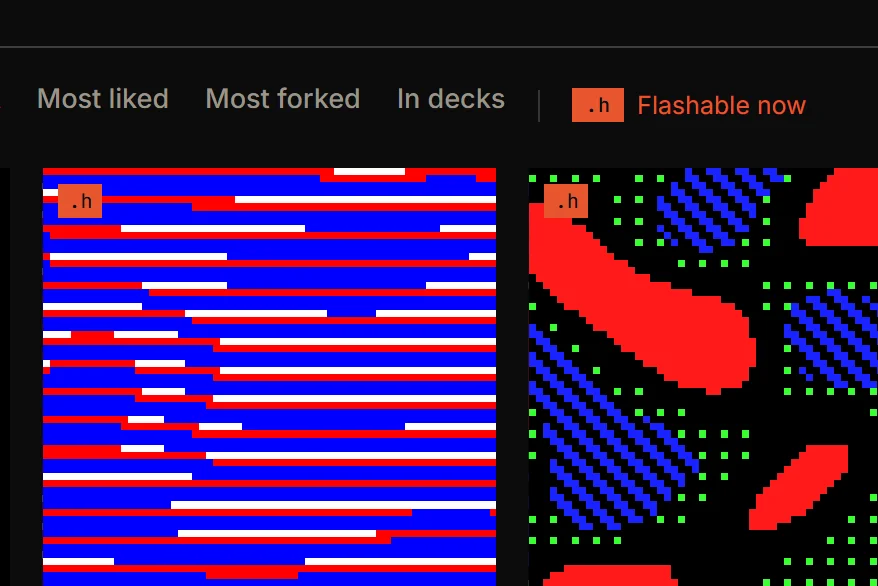
Those carry a .h on the screen. Flashable now shows only them.
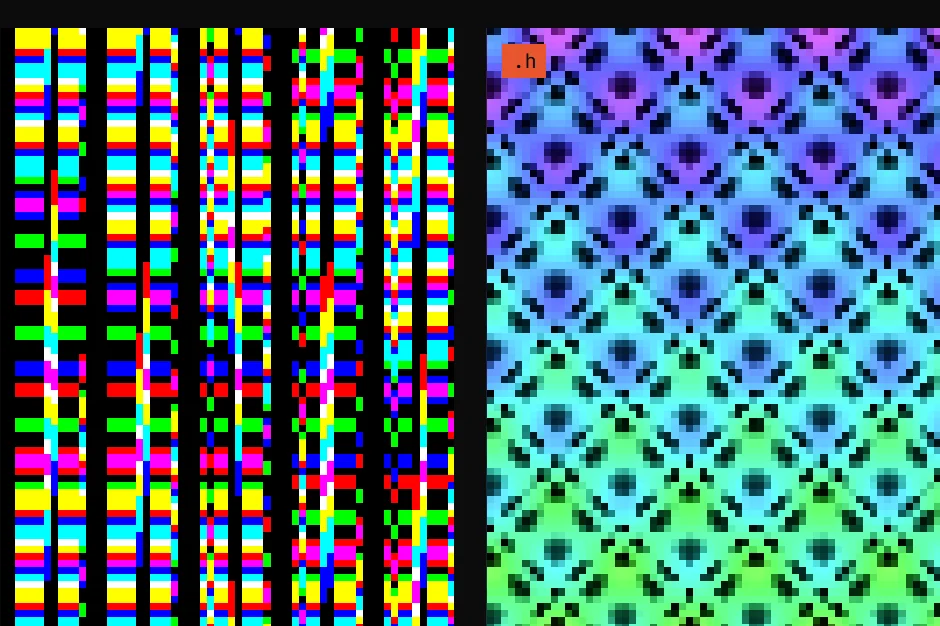
Hardware ready — ships a .h firmware headerThe right one can go on a board. The left one is JS only: it plays here, not there.
One pattern
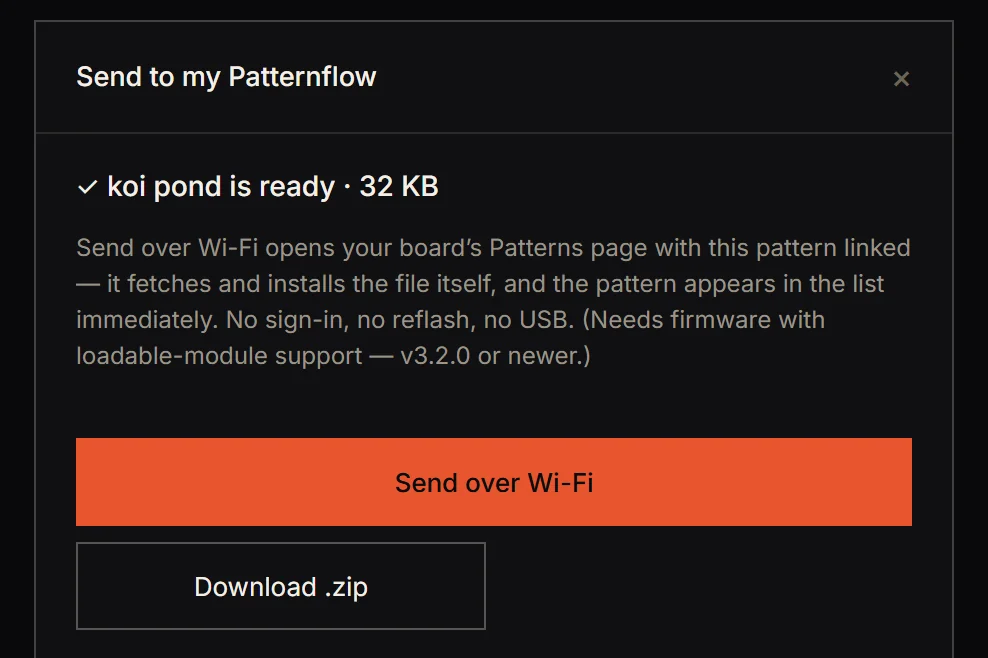
Open a pattern with a .h and press Send to my Patternflow, then Send over Wi-Fi. Your board's own Patterns page opens with the pattern linked, fetches it and installs it. No account, no cable.
It's in the list straight away. Hold K4 to find it.
On Android, type the IP from K2 into Board address in the same window first.
↗ Send to my PatternflowOn the page of any pattern with a .h. No account needed.
Your deck
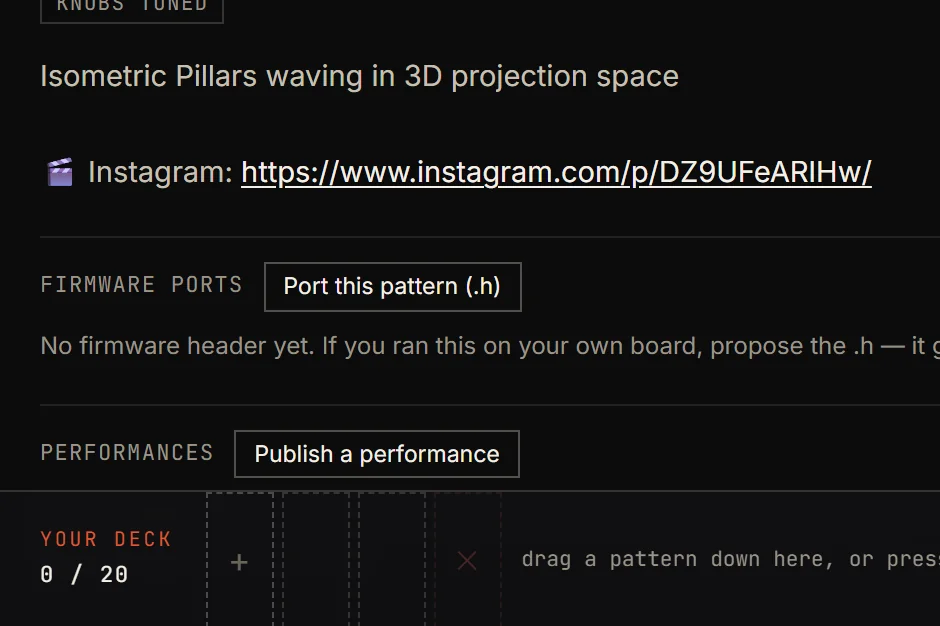
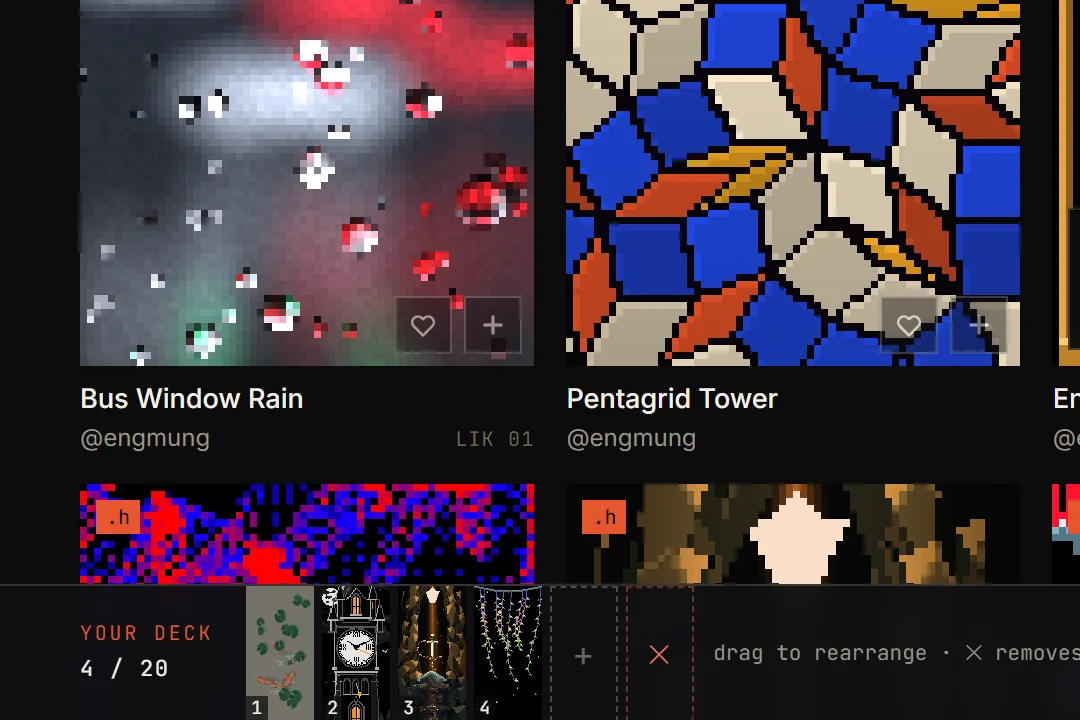
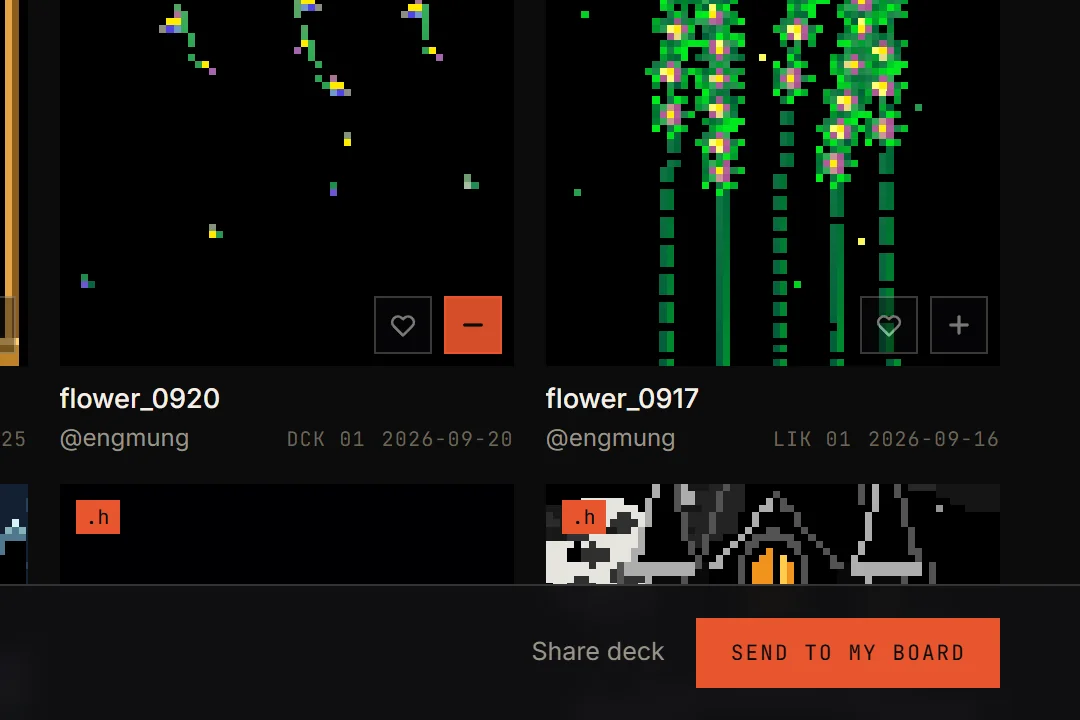
A deck is a running order. Press + on a card with a .h, or drag the card down onto the bar at the bottom: up to 20, kept in this browser. On a phone, the ▦ chip at the top holds it.
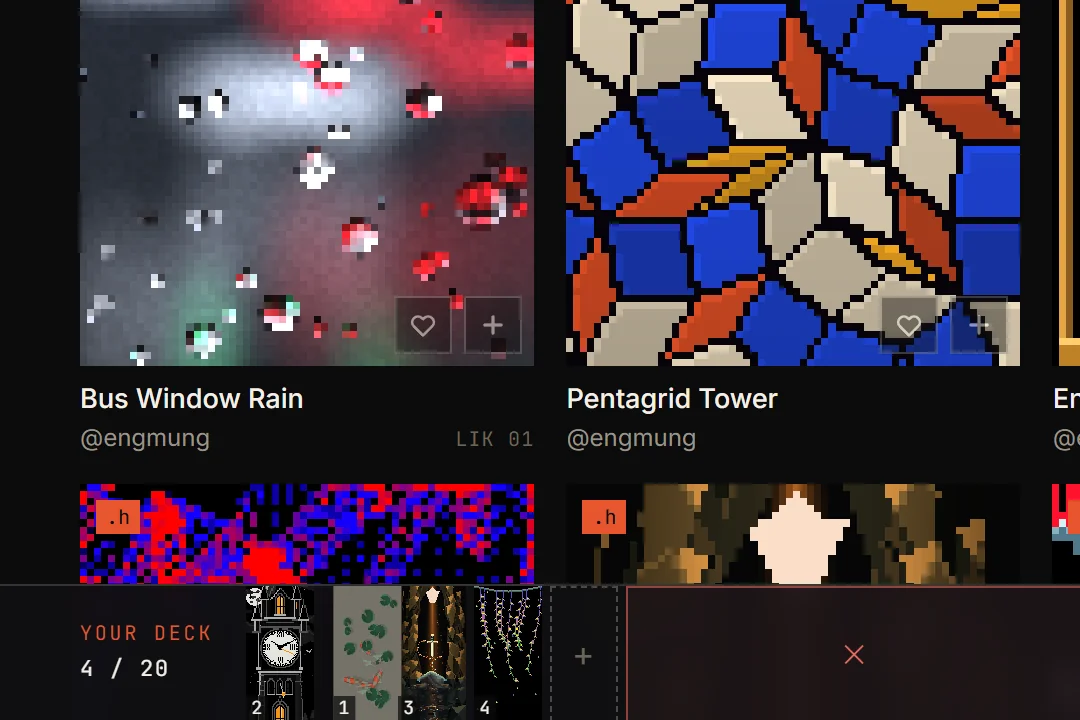
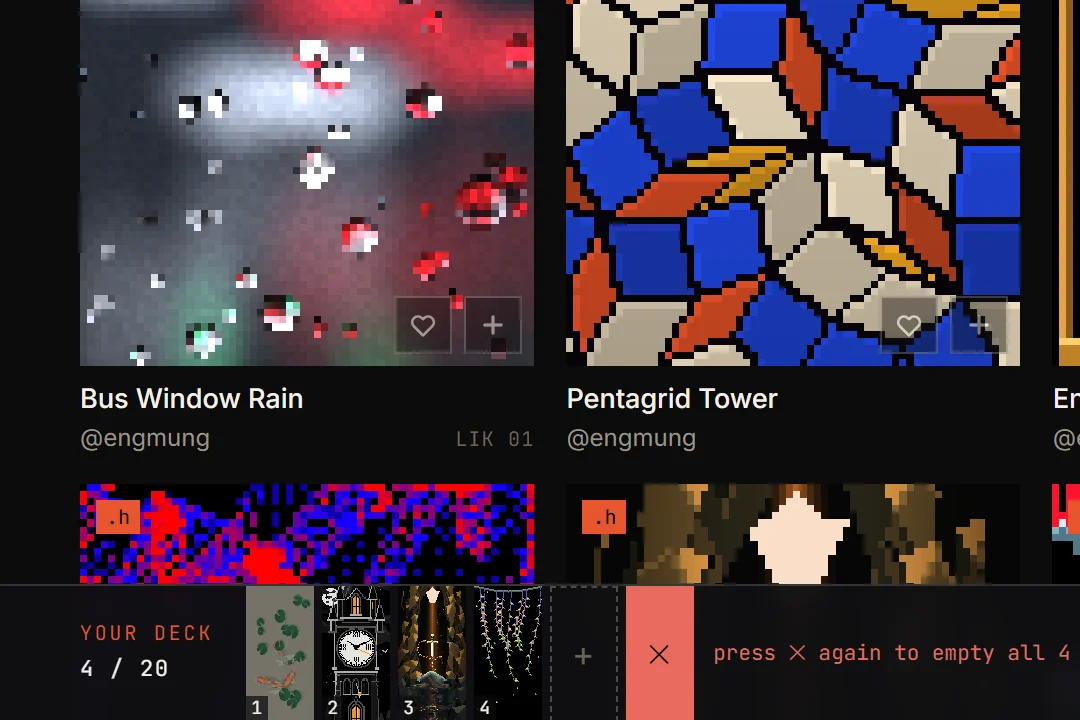
Drag a slot to move it, or onto ✕ to take it out. Send to my board builds the deck (you need an account), then Send over Wi-Fi puts it on your board.
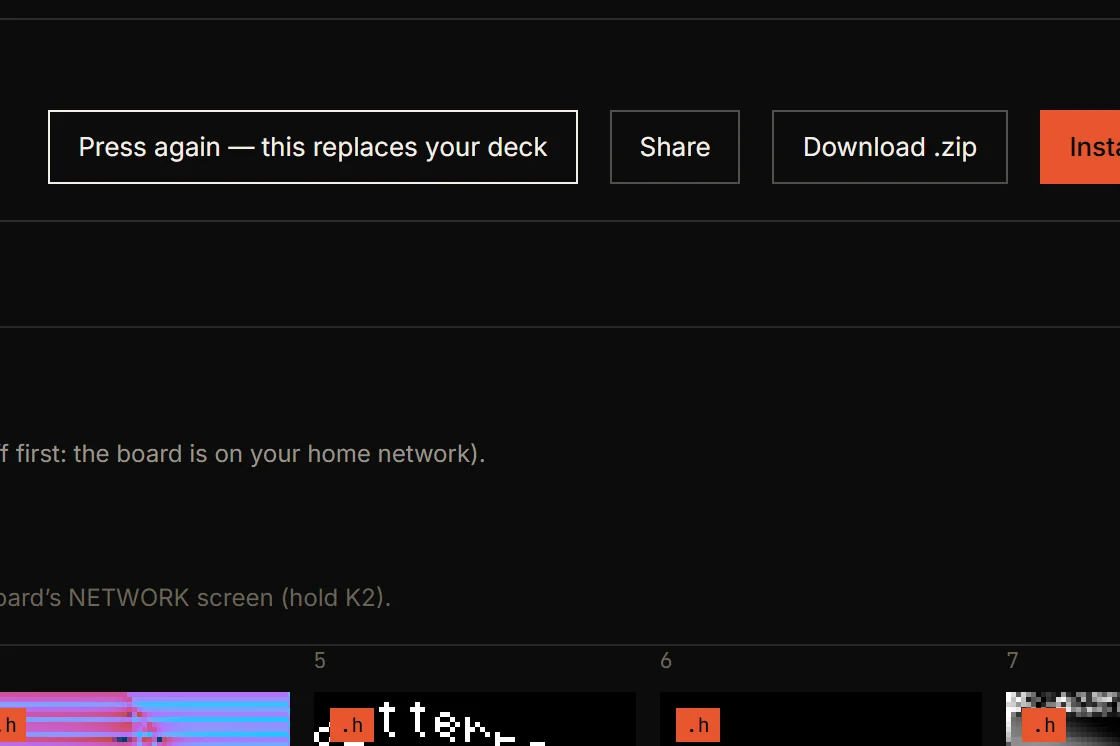
Up to firmware v3.10.4, Send over Wi-Fi drops this order; the next firmware keeps it. Until your board has it, drop the ↓ .zip on the board's Patterns page instead.
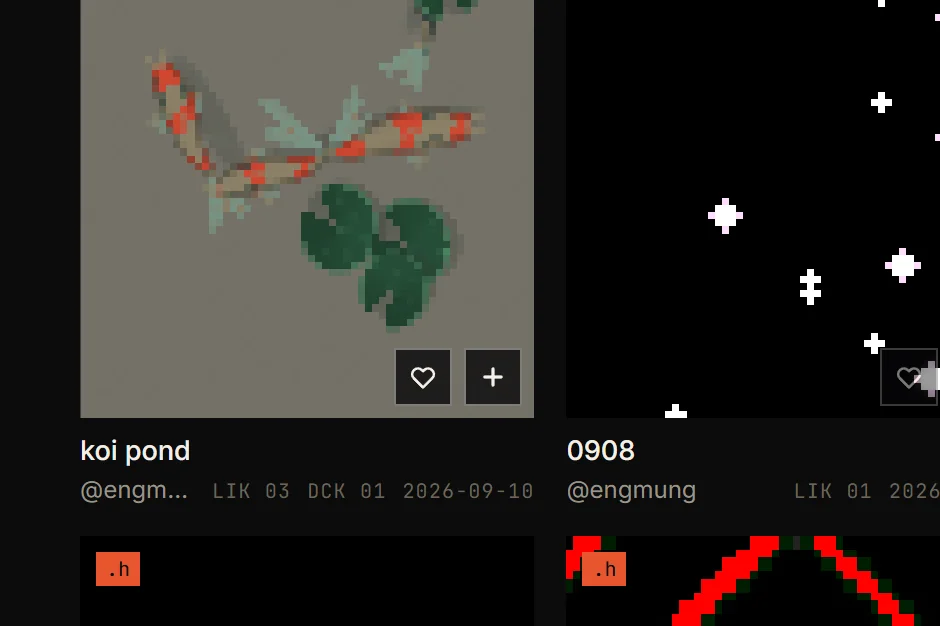
Add to your deckThe + on a card with a .h. Pressed, it turns into a −.
Other decks
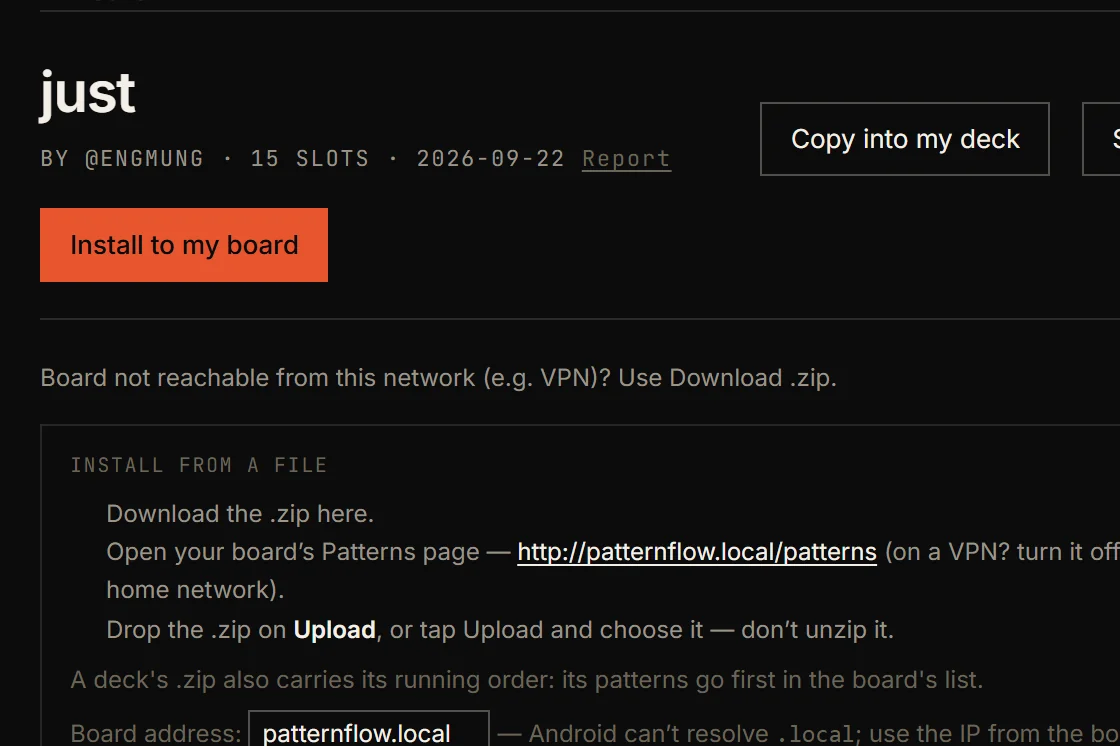
The Decks page is where people put up the sets they stand behind. Basics from 03 is there too, under Ships with Patternflow, with Install to my board right on its card. Open a community deck and press Install to my board: no account, and the order comes with it.
Copy into my deck puts it in your bar instead, to change before you send it.
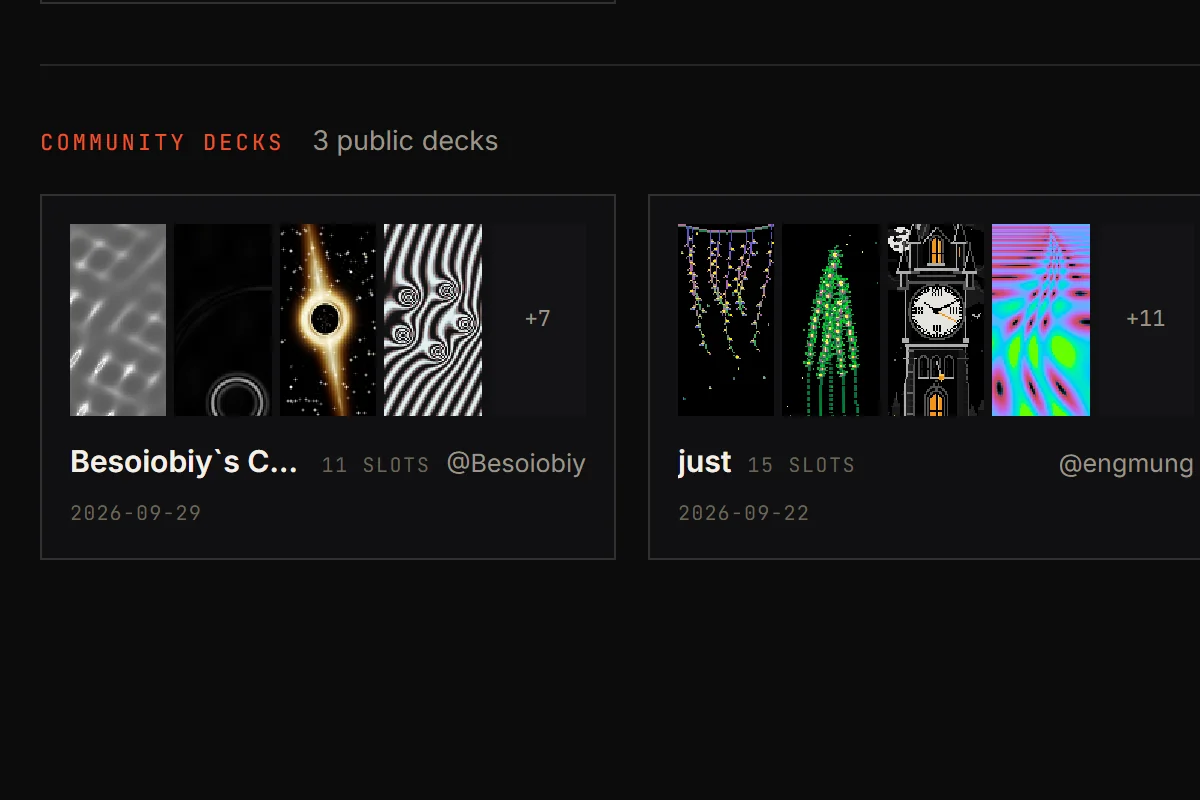
Community decksEveryone's public decks: the first few patterns, in order, then how many more.
Make it yours
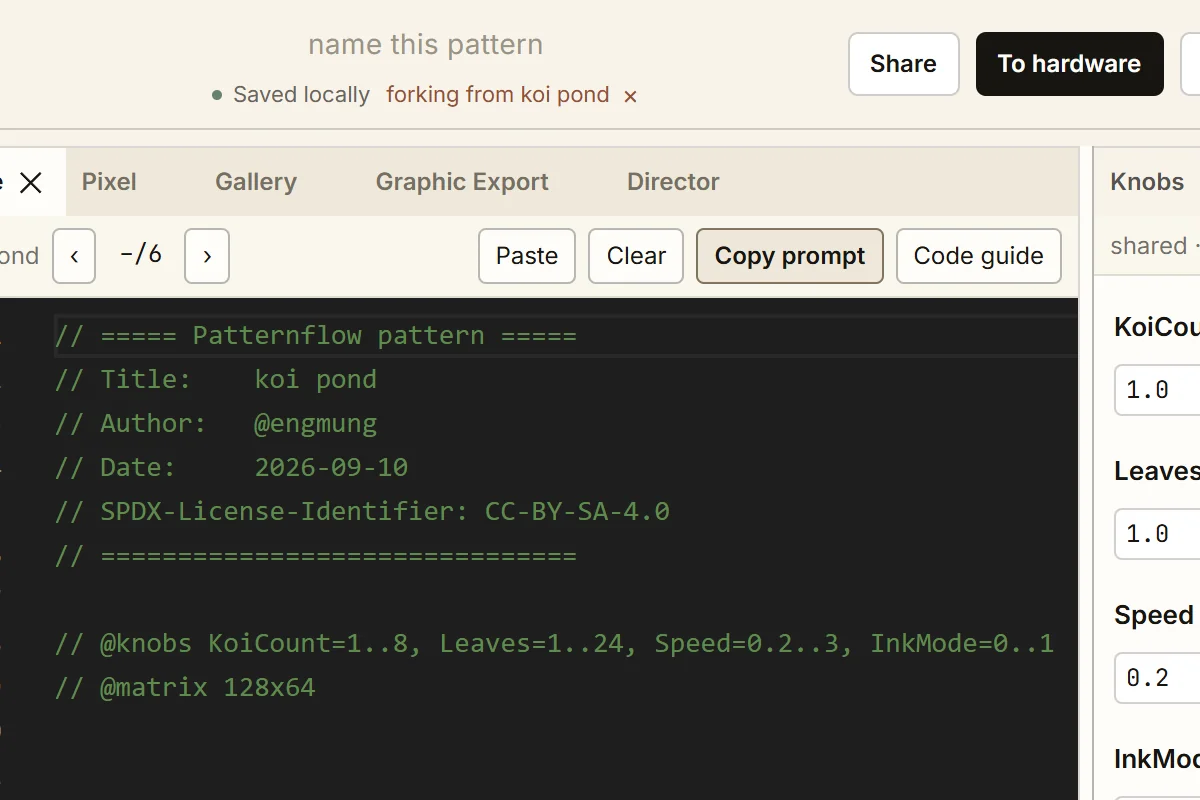
Every pattern's page has Open in Pattern Lab, .h or not. A copy opens in the Lab; share it from there and it goes up as your fork, linked to the original.
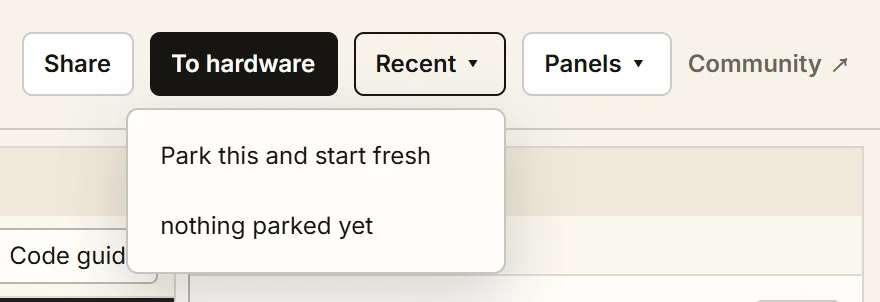
That Lab is the one at community.patternflow.work, with drafts of its own: whatever was open there waits under Recent ▾.
Open in Pattern LabOn every pattern's page, with a .h or without.
Ask an AI for one, colour it, set its knobs and put it on your board. All in the browser.
Pattern Lab
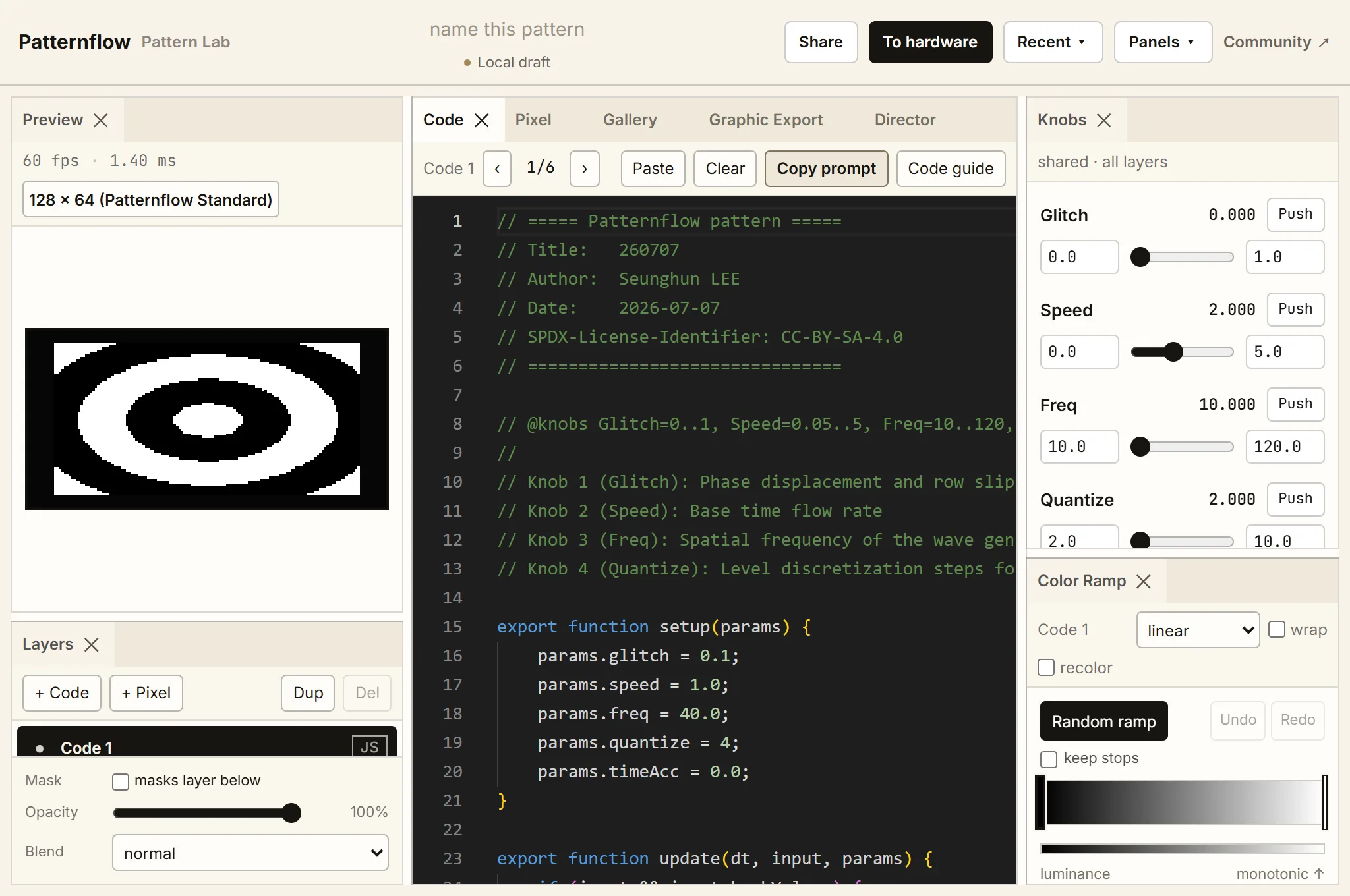
Pattern Lab is at patternflow.work/pattern-lab. It runs in the browser: nothing to install, and no account to start making. The preview is on the left, the code in the middle, the knobs and the Color Ramp on the right.
The board on this page now plays your own draft from this browser's Lab, and changes each time the Lab saves. It only reads it; nothing is written back. With nothing saved, it plays the pattern the Lab opens with, Code 1. Drafts in the community site's Lab don't show here.
Stuck here? Tell usThe name
Type a name where it says name this pattern. It's the name your board will list it under; left blank, the board gets a layer's name, like Code 1.
Your work saves as you go, in this browser only.

name this patternAt the top of the Lab. To hardware writes this name into the .h; the Director and Share start from it.
Ask an AI
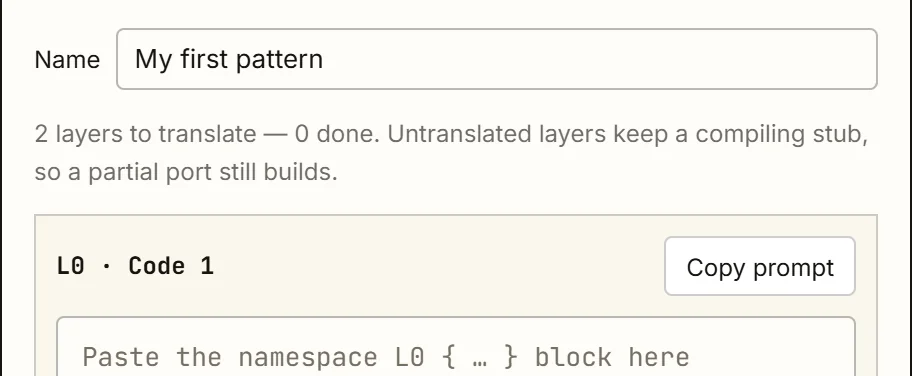
Press Copy prompt and paste it into ChatGPT, Claude or Gemini. It comes back with five variations: copy the one you like, press Paste.
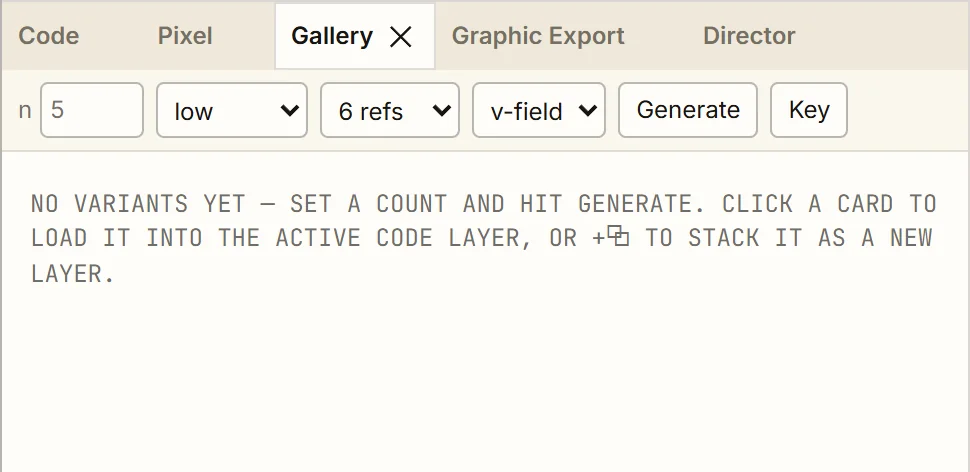
Or let the Gallery ask Gemini for you, with your own free key from Google AI Studio.
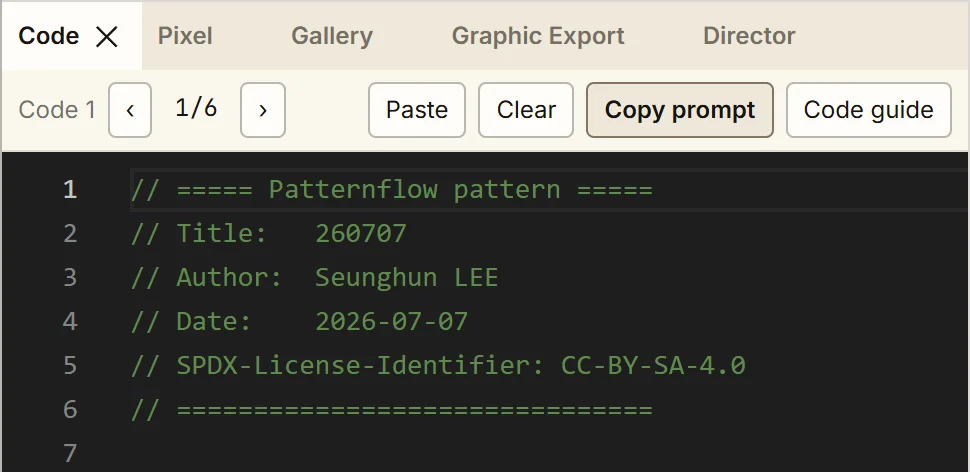
Copy promptCopies the AI prompt for this layer, with its code in it.
Color Ramp
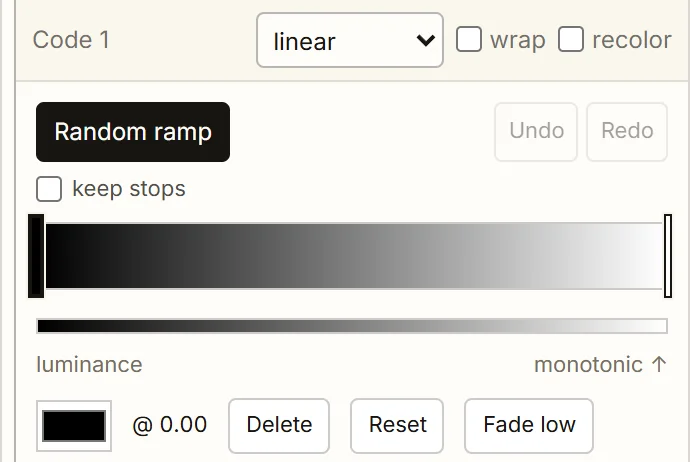
The prompt asks for a v-field: the code gives each pixel a value from 0 to 1, and the layer's Color Ramp colours it. The ramp starts black to white.
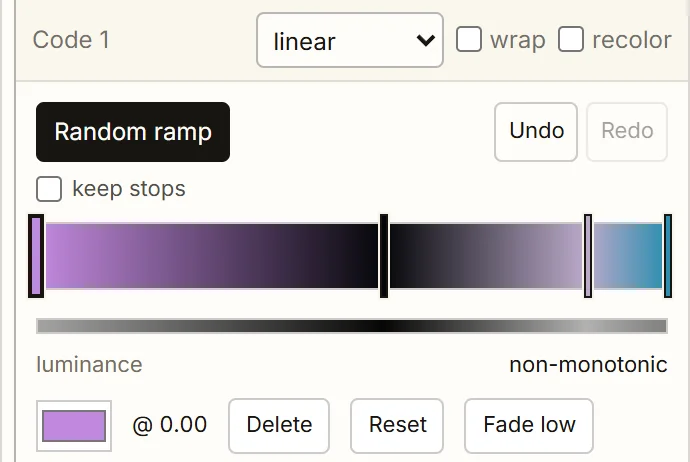
Press Random ramp, or click the bar and pick colours. The ramp goes to the board with the pattern.
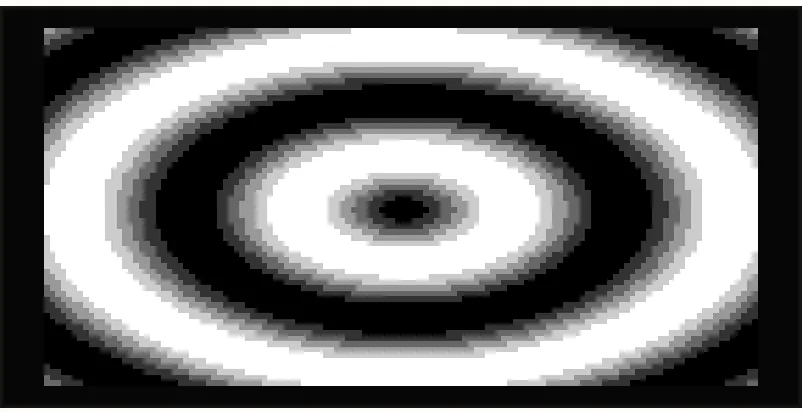
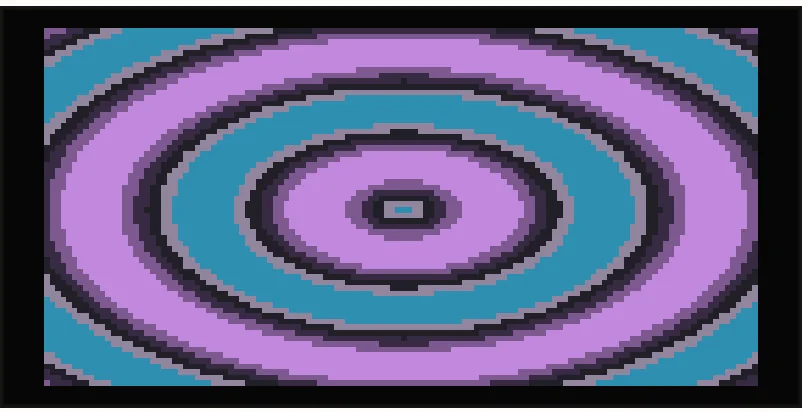
PreviewA v-field on the default ramp: each pixel's value, 0 to 1, shown black to white.
Knobs
The four sliders are your board's knobs, K1 first, shared by every layer. Their names and ranges come from a line in the code: // @knobs Glitch=0..1, Speed=0.05..5, …
Widen a range and the knob does more — on the board too.
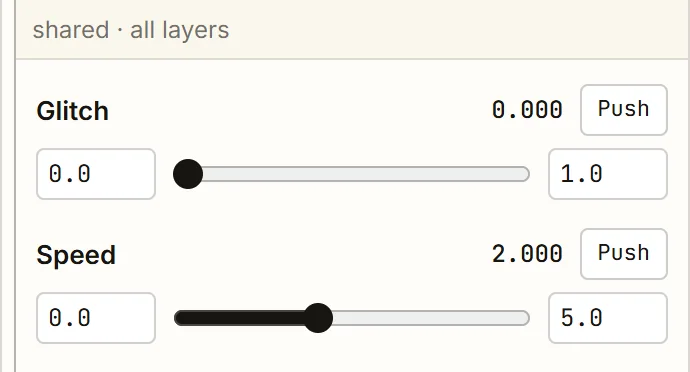
KnobsThe boxes either side of a slider are its range. Drag a digit sideways, or double-click and type.
To hardware
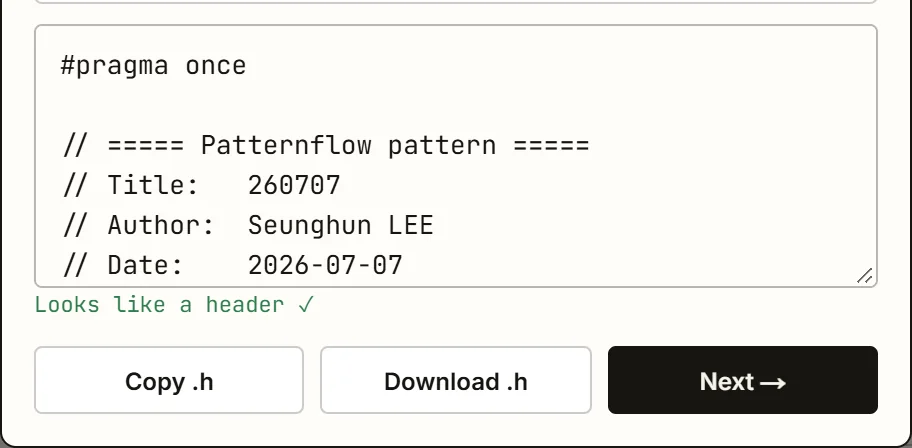
The board runs C++, so the pattern goes to it as a .h header. Press To hardware, then Copy the conversion prompt; paste it into your AI, and its answer back into the Lab.
When it starts with #pragma once, press Next →.
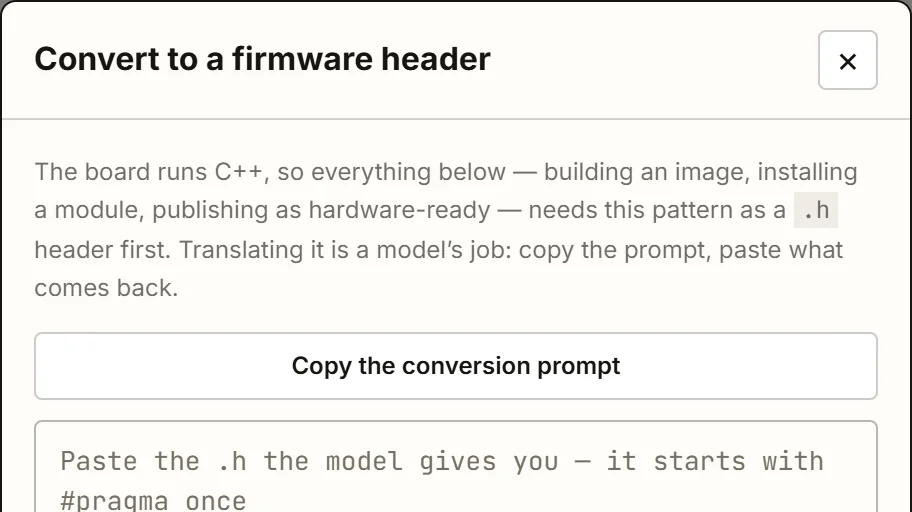
Copy the conversion promptThe prompt for your AI: the pattern with its name, knobs and ranges, the ramp as a finished colour table, and how Patternflow's C++ is written.
Apply
↗ Apply to my Patternflow builds a module on the community's server; you need to be signed in. Send over Wi-Fi then opens your board's Patterns page, which installs it.
Hold K4: it's in the list, under its name.
Your computer has to be on the same Wi-Fi as the board. On Android, put the IP from K2 into Device address first.
↗ Apply to my PatternflowBuilds the module in a second or two, then offers Send over Wi-Fi and Download .zip instead. Needs you signed in to the community.
Layers
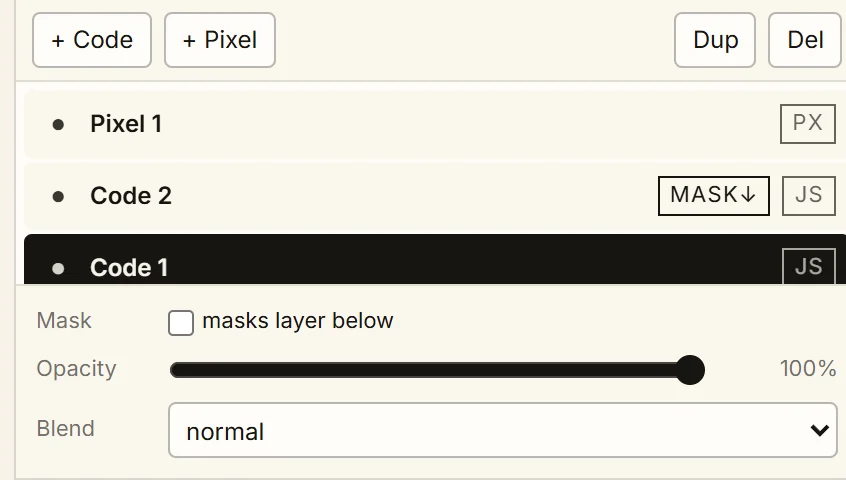
+ Code adds another pattern with its own ramp, + Pixel a layer for pixel art or an image. A layer set to masks layer below cuts out the one beneath it.
For the board, each code layer gets its own prompt.
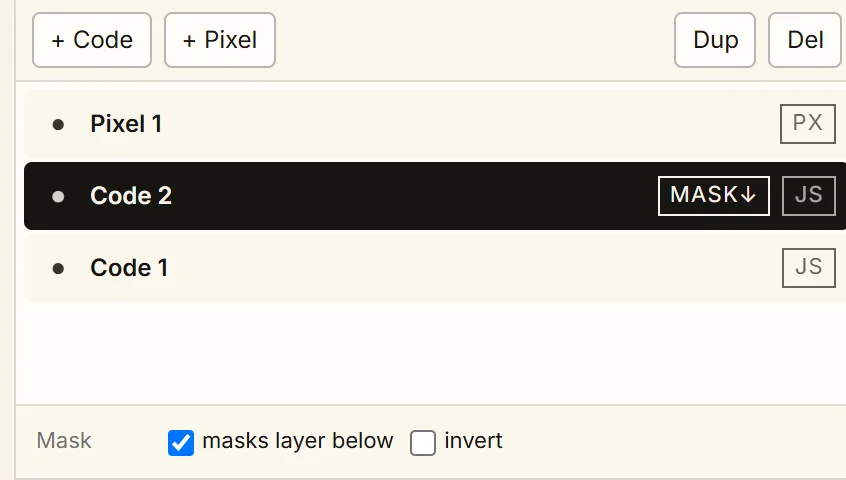
+ Code · + PixelThe top of the list is the top of the stack. Drag to reorder, double-click to rename.
Graphic Export
Graphic Export saves your pattern as a PNG, or records it as MP4 or WebM, up to 4096 px a side. It all happens in your browser.
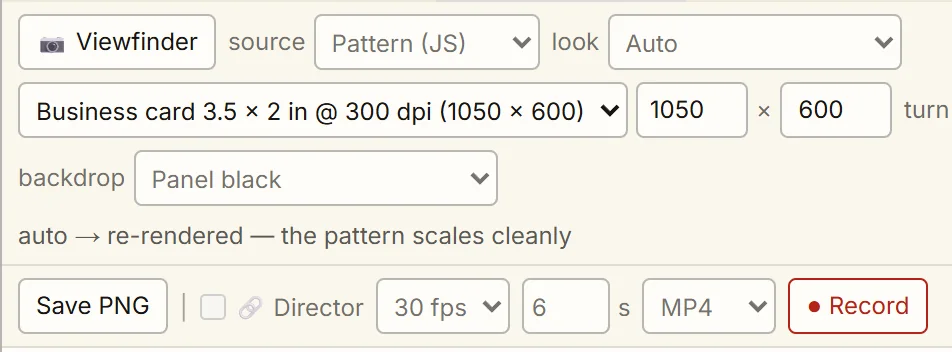
Business card 3.5 × 2 in @ 300 dpi (1050 × 600)A size preset, like the frame × 4 to × 16, Full HD or 4K. Custom… goes up to 4096 px a side.
Director
The Director keyframes the knobs over time. .pfs plays on a board with the Performance edition, .mid goes to Ableton, Render… makes a video.
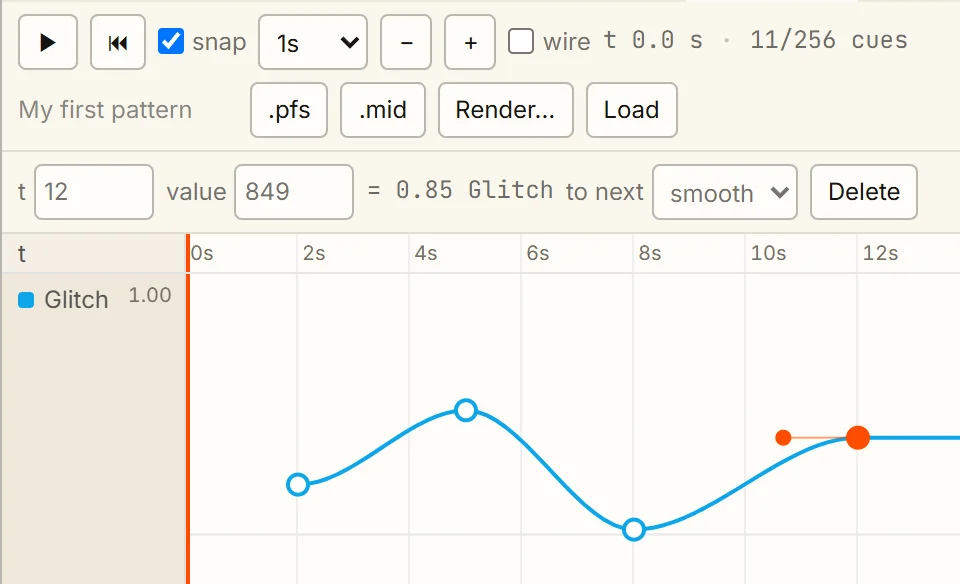
.pfs · .mid · Render…Keyframes on Glitch's lane, a smooth curve between them; ▶ plays it. .pfs is the show for a Performance-edition board, .mid the same moves as MIDI for Ableton, Render… a video.
The community
Upload to the community publishes it with its .h, ready for anyone's board; Share, at the top, without one. You sign in when you publish.
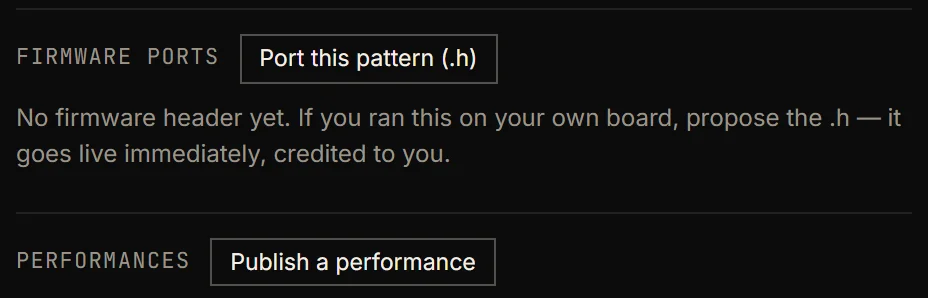
Opened someone's pattern? Yours goes up as its fork. And a JS-only pattern from 05 can get its .h the same way: make it here, propose it on its page.
Upload to the communityUnder Apply. The pattern and its .h go up together. Opened from someone's pattern, it goes up as their fork: the top of the Lab says forking from …, and its × undoes that.
Now you can find patterns and make your own. The guides after this one are about the rest of what the board can do.
Later guides
Until they're here, the real things:
Stuck somewhere else? Tell us